
This is an old revision of the document!
Table of Contents
- type:
- gateway
- name:
- CyberSource Secure Acceptance Web/Mobile
- support-added:
- 1.1
- auth-net-emulation:
- no
- gateway:
- http://www.cybersource.com/products/payment_security/secure_acceptance_web_mobile/
CyberSource Secure Acceptance Web/Mobile
Setting Up CyberSource Secure Acceptance Web/Mobile for FoxyCart
- Login to the CyberSource Business Center: https://ebc.cybersource.com/ebc/login/Login.do
- Navigate to Tools & Settings → Secure Acceptance → Profiles
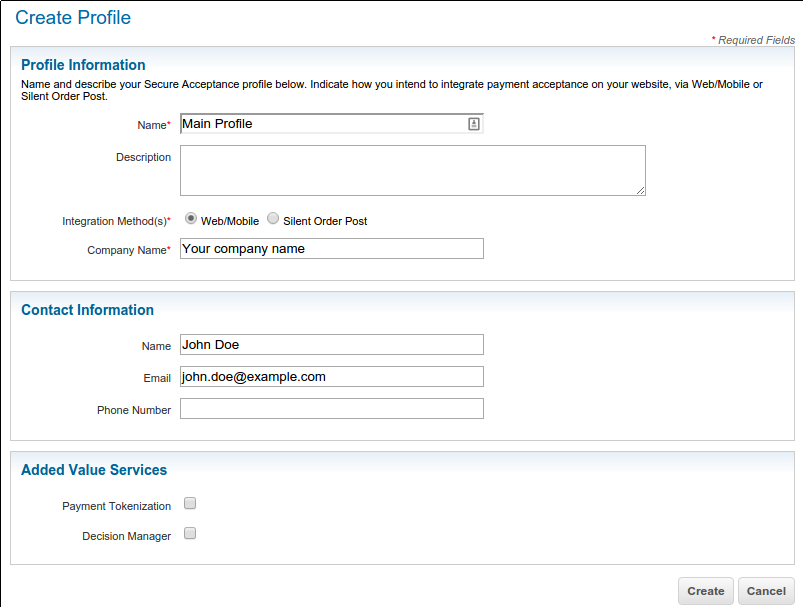
- Create a new profile. If you already have a profile set up, open it and continue to the next step.

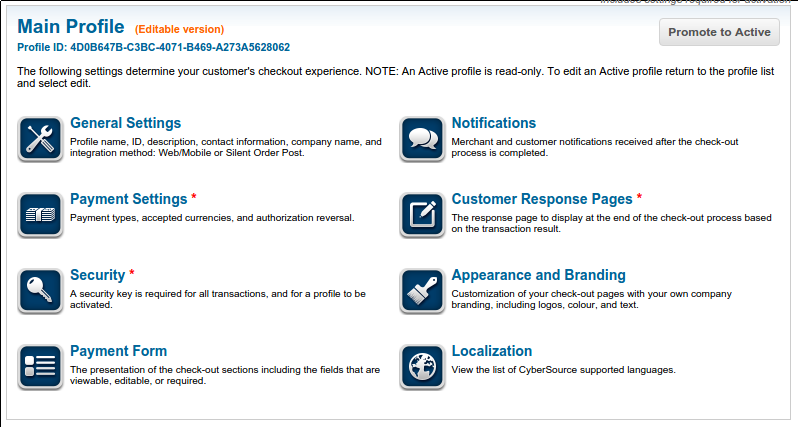
- From within your profile, copy the Profile ID found towards the top of the page into the Profile ID field in FoxyCart administration payment settings section.

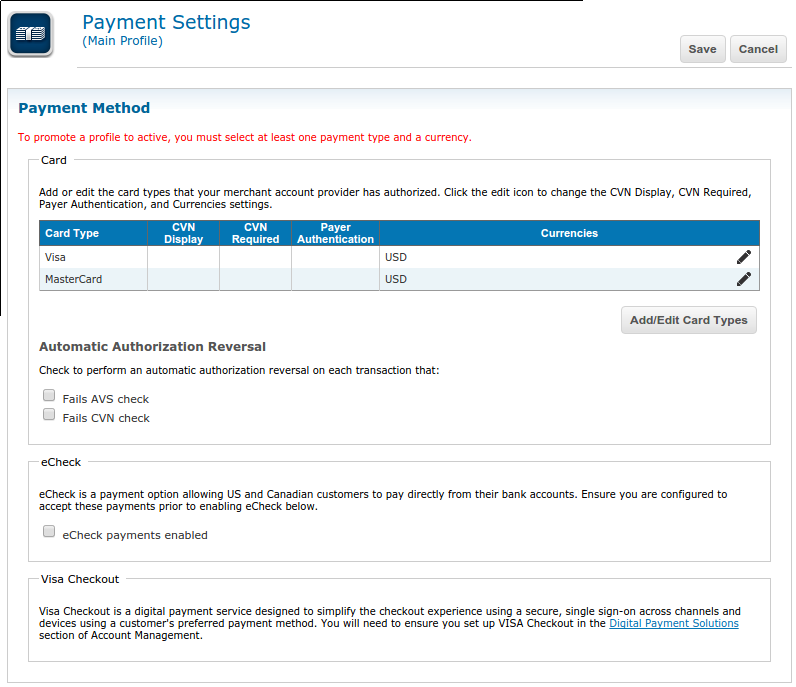
- Go to the Payment Settings section and select the card types and currencies you need.

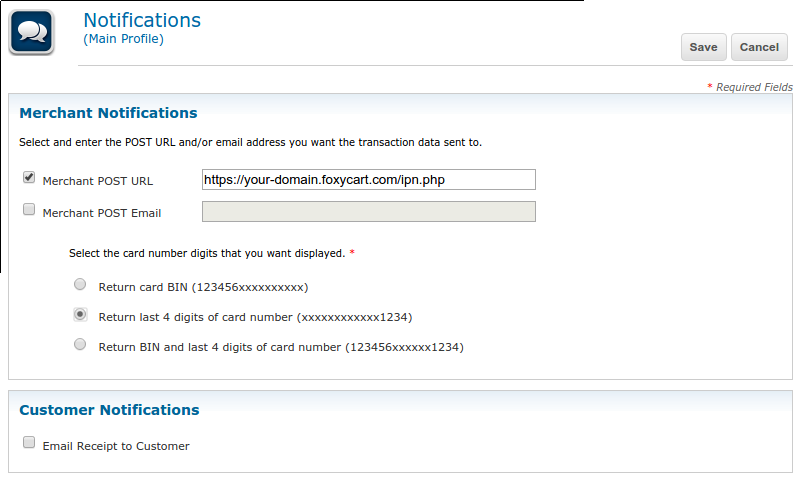
- Go to the Notifications settings and set the Merchant Post URL to be
https://YOUR-STORE.foxycart.com/ipn.php- changing it to match your own FoxyCart store domain. For example, if your FoxyCart store domain wasexample.foxycart.com, you would set the Merchant Post URL to behttps://example.foxycart.com/ipn.php.

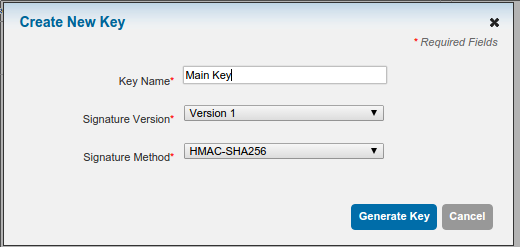
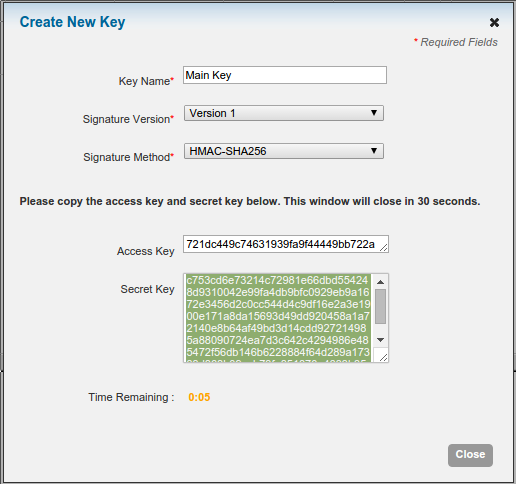
If you're letting FoxyCart send your receipts for you, you'll also want to ensure the “Email Receipt To Customer” checkbox is unchecked. - In the Security section, create a new key. If you already have an existing key, open it and proceed to the next step.

- Looking at your key, copy the Access Key and Secret Key into the matching fields within the payments section of the FoxyCart administration.

- From the Profile section, click the “Promote to Active” button in the top right hand corner to make it active.
Testing
Obtaining a Test Account
Contact CyberSource Secure Acceptance Web/Mobile for info. Know more? Feel free to edit this page with info.
Test Card Numbers
Contact CyberSource Secure Acceptance Web/Mobile for info. Know more? Feel free to edit this page with info.
Troubleshooting & Interpreting Response Codes
Contact CyberSource Secure Acceptance Web/Mobile for info. Know more? Feel free to edit this page with info.
Important Notes and Caveats
User Notes and Experiences
If you have tips, experience, or helpful notes related to this gateway that would benefit others, please add them below, including your name and the date. We reserve the right to edit or remove comments that don't add value to this page.